
applications
Biometric Logon
An enterprise biometric authentication approach
Business Need
Businesses are increasingly in a situation where secure authentication to workstations and applications becomes paramount. For several decades, username and passwords have been state-of-the-art and sufficient to provide required security levels.
Usernames and password lend themselves to abuse, employees share usernames, forget passwords, write them down, share them and ultimately compromise application security, which the CIO and the information systems team fight so hard for.
In recent years, multi-factor authentication has become more available, and employees log on to workstations and applications with:
- What they know: passwords
- What they have: smart cards and tokens
- What they are: biometric samples
Biometric authentication is most convenient, since fingerprints or facial geometry cannot be shared like passwords, and cannot be lost or left at home like smart cards.
Before Windows 7
The most widely used operating system in the corporate world, Microsoft Windows, has had limited support for biometric logon. Until Windows 7, there was no standardised way of interfacing with biometric devices, and no standard way of biometric logon.
A few software vendors had implemented customised logon screens, by modifying the GINA, which is the API all versions of Windows before 7 used for logon. The shortcoming of this approach was that these GINA modifications have unlimited access to logon information; and were mutually exclusive. Only one such modification can exist on any given workstation.
What Changed After Windows 7
With Windows 7, or in fact Windows Vista, this has changed fundamentally. Microsoft has introduced two capabilities, which allow safe and secure biometric logon:
- The credential provider architecture allows adding several biometric and other logon mechanisms without interfering with the existing password logon; or interfering with each other.
- The Windows biometric framework (WBF), which adds a standardised way to perform biometric enrolment and verification. With Windows 7, the only biometric mode supported is fingerprints, but others might be added in future.
Out of the box, Microsoft offers a credential provider, which allows biometric logon, provided a WBF-compliant fingerprint reader is installed. One might think that this has solved our problem?
Microsoft provides biometric logon out of the box? Unfortunately, this is not quite the case.
What has Microsoft not given us?
The out-of-the box functionality for biometric logon since Windows 7 is a very useful feature for individual productivity. Just add a biometric device with a WBF driver (which many laptops already have), enrol and logon. Redmond has confirmed that they are targeting personal productivity and convenience, but not an enterprise-ready solution. The Windows 10 offering is a convenient way to forget your password, and allow the operating system to remember it for you.
Biometric logon as a cornerstone of enterprise-wide security requires more:
- Central enrolment. Windows out-of-the-box stores enrolments on the workstation, if a user wants to logon on more than one workstation, every enrolment is separate, and the user must enrol afresh on every workstation. There is no centralised enrolment.
- Device-independent enrolment. WBF stores enrolments in a private database per fingerprint reader. If the fingerprint device is replaced with a different model, the user needs to enrol again.
- Enrolment before logon. In order to enrol, a user must first logon, using a password. There is no enforcement or encouragement to biometrically enrol and logon, it is up to the discretion of the user, if she or he enrols.
- Enforced biometric logon. Similarly, it is up to the discretion of the user, if she or he uses biometric logon or continues to use the password.
- Biometric logon to the operating system and applications. Windows out-of-the-box biometric logon is for logon to the operating system only, enrolled biometric samples cannot be used for application verification, and there is no standard user interface for application logon or verification. It is left to every application individually, to use the WBF API to implement biometric verification.
- Non-repudiation. Since application verification is not implemented, there is limited support for non-repudiation across all business transactions.
- Support for legacy biometric drivers. Windows out-of-the-box biometric support is limited to newer generation biometric devices with WBF drivers; there is no support for legacy devices.
- Support for smart card. Windows offers a smart card credential provider out-of-the-box, but smart cards and biometric logon are completely separate and cannot form integrated multi-factor authentication.
Windows 10 and Windows Hello
With Windows 10, Microsoft has announced Windows Hello as a major overhaul of the biometric capabilities of the operating system; and have announced it as “Windows Hello is a more personal way to sign into your Windows 10 devices with just a look or a touch. You’ll get enterprise-grade security without having to type in a password.”
Unfortunately, the part relating to enterprise-grade security is not quite that comprehensive. Microsoft has added face and iris to the biometric framework, but they have not changed the fundamental architecture of WBF, whereas biometric information is still linked to the device, and is stored locally, so that you must re-enrol on every device.
Microsoft has also changed the logon experience to become user-centric. Instead of displaying one tile per logon method, Windows now displays one tile per known user, with small supplementary icons to switch logon method. This is Microsoft’s way to respond to the trend to mobile devices, but this has even more engrained the principles of WBF being a user convenience, and not an enterprise solution.
Windows Hello is not an enterprise solution. The focus remains on individual user convenience.
Alcazar Biometric Logon
Designed and built for the enterprise, Alcazar Biometric logon takes biometric logon to the next level. We understand that the enterprise requires security solutions which optimise user convenience, and are easy to install, deploy and maintain.
Alcazar Biometric logon has been developed in co-operation with leading users of biometric authentication in the most security-aware industry, financial services. It has been deployed on over 8000 workstations since 2010; and continues tp form a security cornerstone for large corporates.
- Central enrolment. Enrolments are stored in Active Directory or any other supported LDAP directory, and are accessible from every workstation on the network. Enrol only once.
- Local cache. Once the user has logged on a workstation, biometric credentials are stored locally, providing the convenience of fast and network-independent logon.
- Device-independent enrolment. Enrolments are device-independent and remain valid on all workstations across a mix of any supported fingerprint reader.
- Enrolment before logon. Biometric logon allows enrolment before logon; and has the option of preventing any logon with a password, therefore enforcing enrolment. Enterprise security taken seriously.
- Enforced biometric logon. Biometric logon changes the user password, so that the user does not know any password, and does not need to know. Regular password changes occur transparent to the user, preventing security leaks. No passwords in your enterprise.
- Biometric logon to the operating system and applications. Biometric logon comes with biometric logon to the operating system, and a ready-to-use, easy to integrate applet for application logon. Your intranet now comes with biometric logon too.
- Non-repudiation. Use the Biometric logon verification applet throughout critical stages of any business transaction, implementing non-repudiation and business security.
- Support for all biometric drivers. Although conceptually based on the WBF, Biometric logon supports any biometric devices. Currently implemented are L1, UPEK, Digital Persona, Lumidigm, Futronic, and Secugen readers.
- Support for smart cards. Biometric logon integrates biometric authentication with smart card logon. The same architecture supports enrolments in Active Directory or on smart cards, with an easy transition path from one to the other.
- Architectural simplicity. Biometric logon comes as client-only installable, no server components are required.
- Operational simplicity. Biometric logon is one simple installer, and its deployment has been fully integrated into management solutions, like Microsoft System Centre.
Biometric Logon Architecture
Alcazar Biometric logon blends seamlessly into the Microsoft credential provider architecture (which Windows Hello uses to create the logon user experience), the Microsoft security architecture, and Microsoft Active Directory. The product has however been built to support any LDAP directory for its biometric store – however due to the tight integration between Microsoft Active Directory and Windows logon, Active Directory is preferred.
Biometric logon presents itself to the operating system as credential provider, as the built-in password logon or any other third-party logon method would.
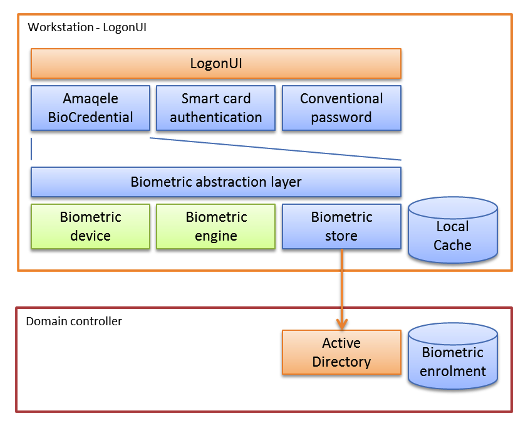
The biometric capability is provided through an abstraction layer, which plugs in adapters for biometric devices and cameras, biometric engines (fingerprint matchers, facial recognition or iris engines), and for the biometric store, the place where biometric templates (fingerprint minutiae) are stored.
The default biometric store is twofold – a local cache to allow quick logon for locally known users, who have been at this device before, and Active Directory for a server lookup for any roaming user.
Biometric logon comes as a single, simple, lightweight installer, which integrates well into automated workstation builds. No proprietary software or extension is required on the server, only one extension attribute on the Active Directory to store biometric data.
Biometric logon has been designed and built for the enterprise, simple, effective, the secure biometric workhorse for every day.
System Requirements
Windows platform requirements
- Windows 10, 11, x86 or x64
- Any personal computer workstations or laptops capable of running the Windows operating system, 4 GB RAM recommended
- Any supported fingerprint reader. If you are using a fingerprint reader which is not on our current compatibility list, and there is an SDK available, we will be able to support it.
- Any supported biometric fingerprint engine. We currently support
- BIO-key VST
- Neurotechnology VeriFinger
- Innovatrics fingerprint SDK
- Network/LAN connection to connect to Active Directory (or any other supported LDAP
- Microsoft C++ redistributables 2017
- An enterprise wide implementation of Active directory 2012 or later. It is recommended that the personal computer workstation is a member of the domain.
Biometric Logon is part of our biometric solution suite. Explore our biometric solutions.